

From install to connecting your AIGetting started.myDoo.
Download, sign up, connect the AI you already use — and you're ready.
Download the myDoo for your computer.
mydoo.ai ↗ · Actual homepage screen
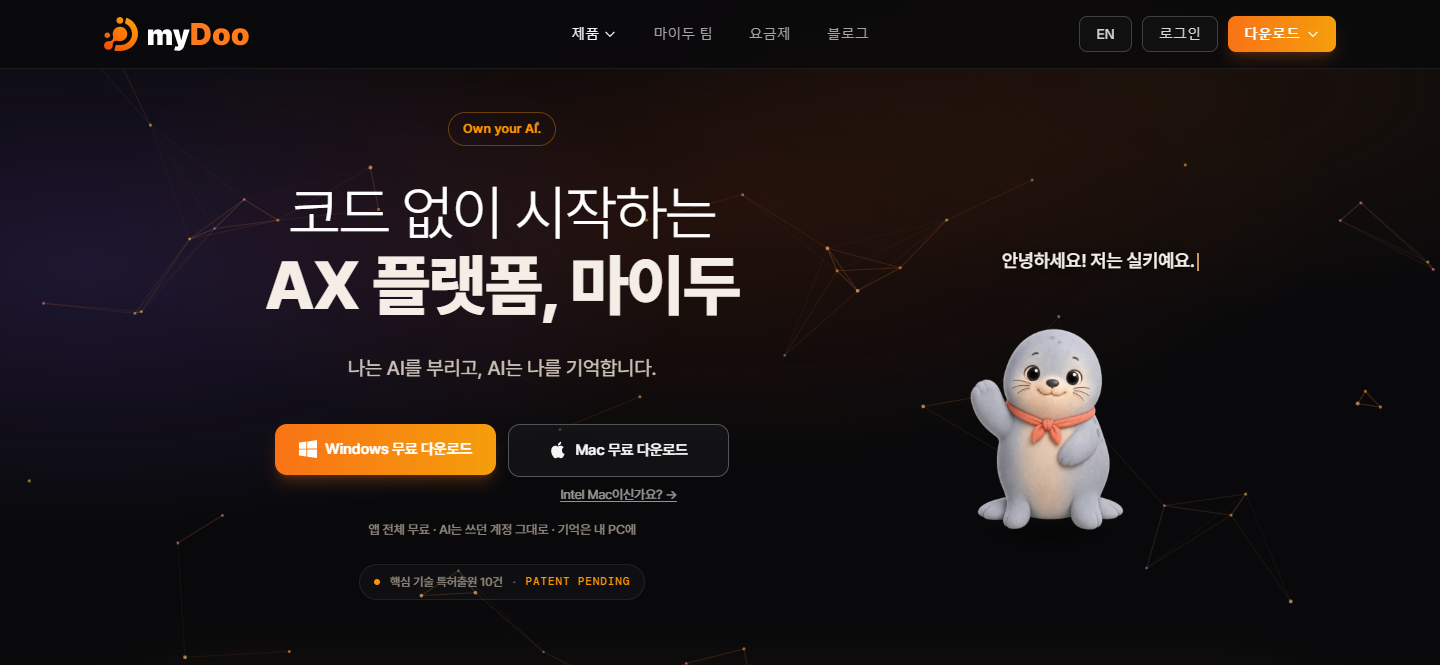
Choose the Windows or Mac download. Mac is supported too — the next pages (3–5) show Windows; on Mac, open the downloaded file and follow the on-screen steps.
If Windows shows a protection screen, proceed like this.
Windows SmartScreen · Recreated for illustration, not an actual capture
Windows protected your PC
Microsoft Defender SmartScreen prevented an unrecognized app from starting. Running this app might put your PC at risk.
More infoWindows protected your PC
Microsoft Defender SmartScreen prevented an unrecognized app from starting. Running this app might put your PC at risk.
App: (name of the downloaded installer)
Publisher: (publisher shown on your screen)
Proceed only if you've confirmed this is the myDoo installer from mydoo.ai.
If there's no “Run” button or the source differs, stop. Don't turn off security settings; check with your administrator.
The display may differ by Windows version and policy. · Microsoft SmartScreen noticeReview the license agreement, then choose your options.
Windows · actual installer screen
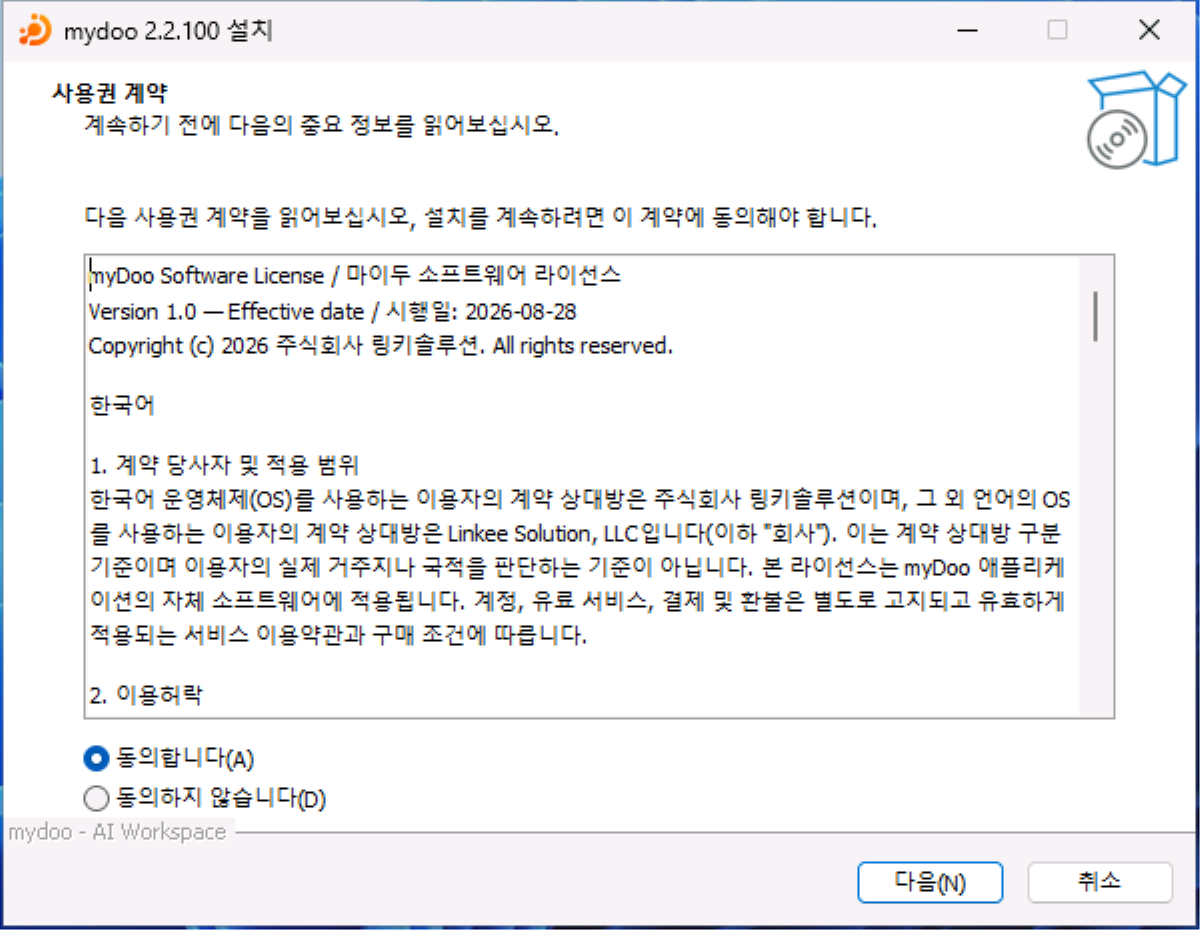
Read it and, if you agree, click “I Agree” → “Next”
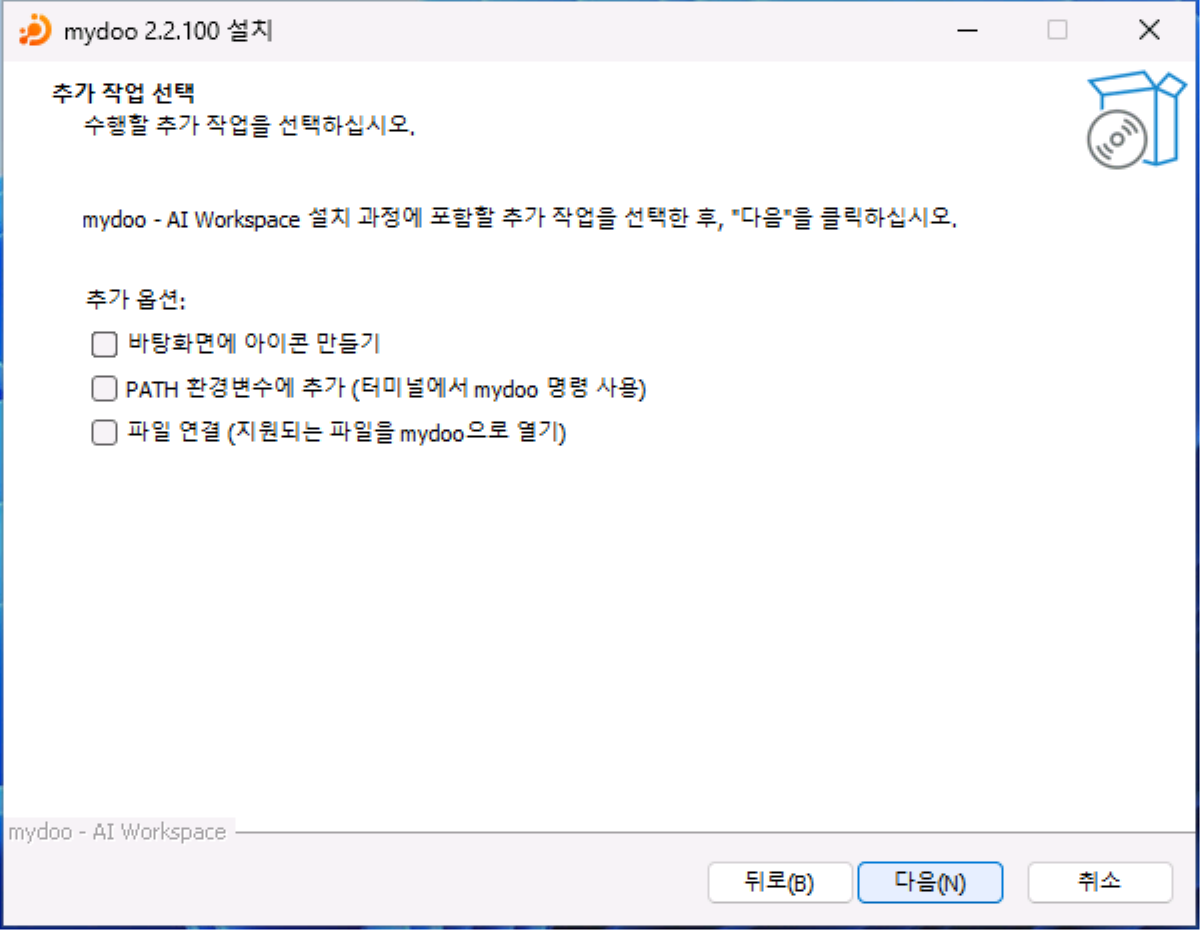
Pick desktop icon, PATH, and file associations, then “Next”
Start the install, then open myDoo.
Windows · actual installer screen
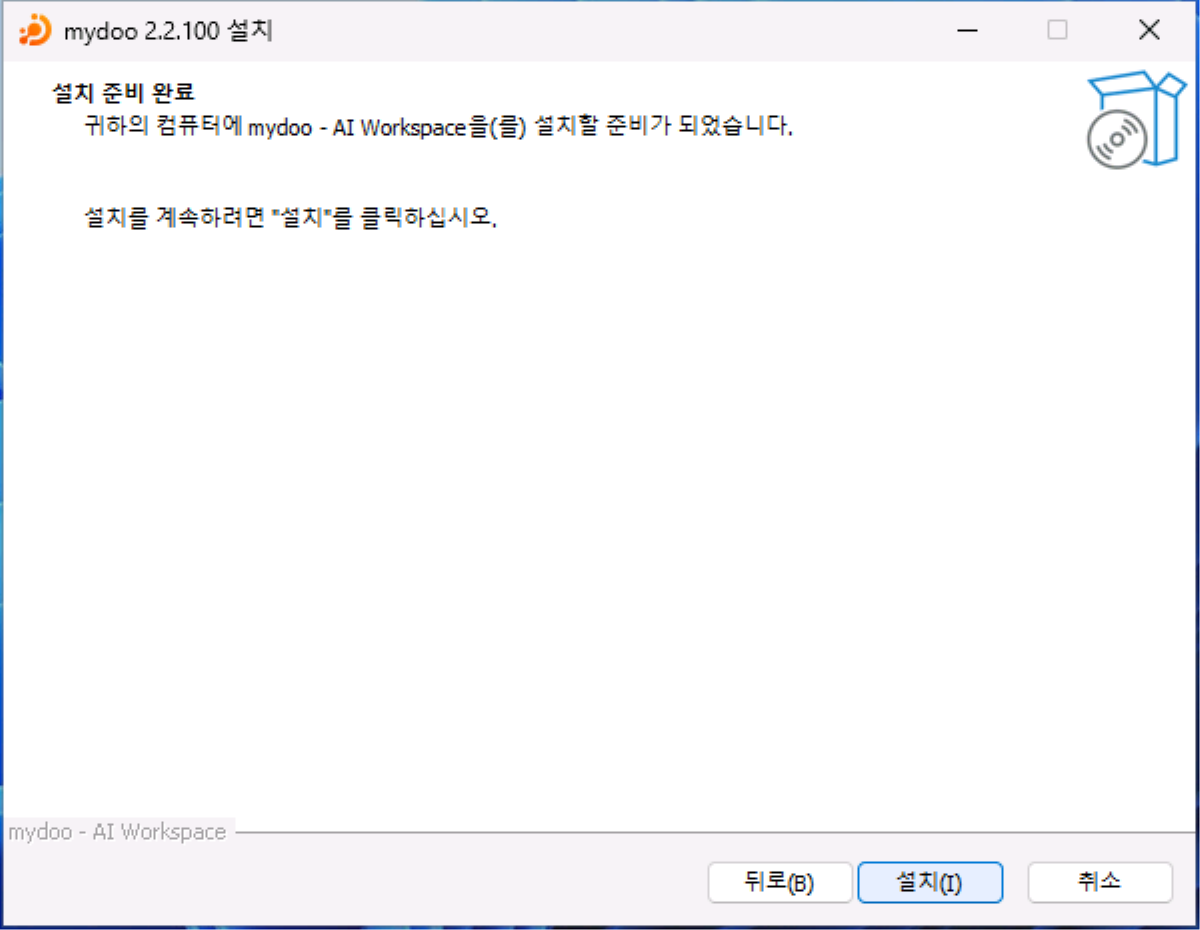
Click “Install” and wait.
Keep your internet connected.
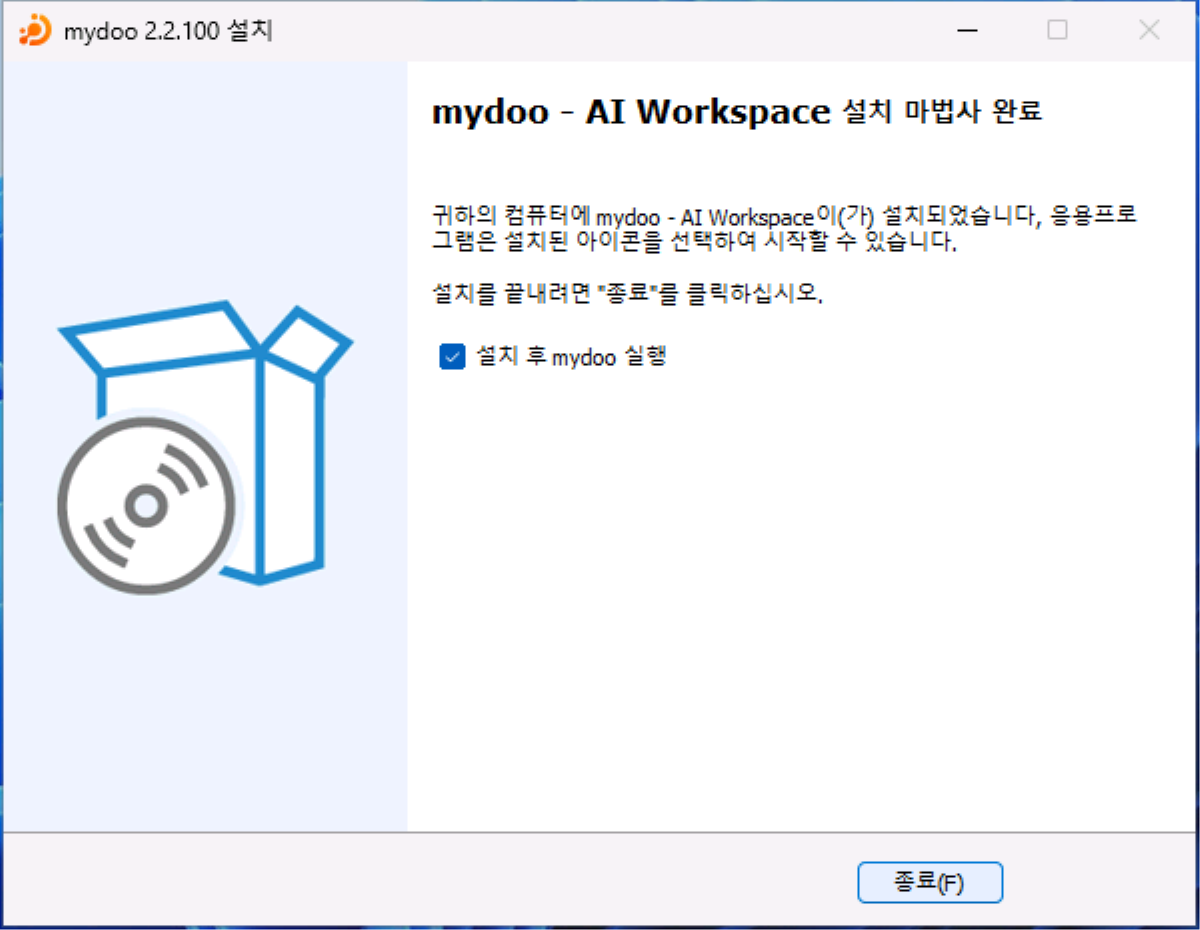
Keep “Run mydoo after install” checked
and click “Finish”.
First, sign up for myDoo.
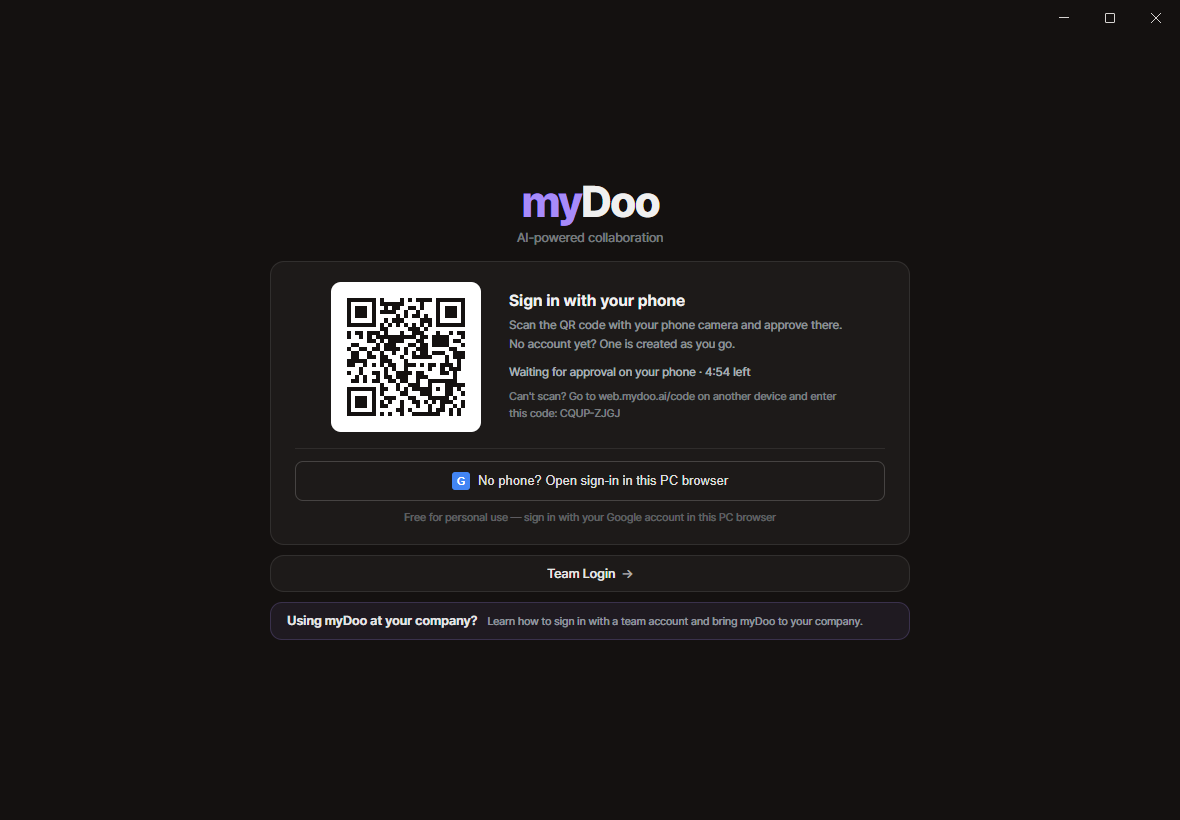
Even if you use it for free,
you need to sign up.
New here? Sign up.
Already have an account? Log in.
Follow the on-screen steps on your phone
or in this PC's browser.

Actual app · English UI · The QR and one-time code shown are expired examples. Don't use the QR on screen.
Choose how you use AI.
Screen example · Two paths — connect the AI you already use (KRW 0), or use AI within myDoo through a myDoo Plan.
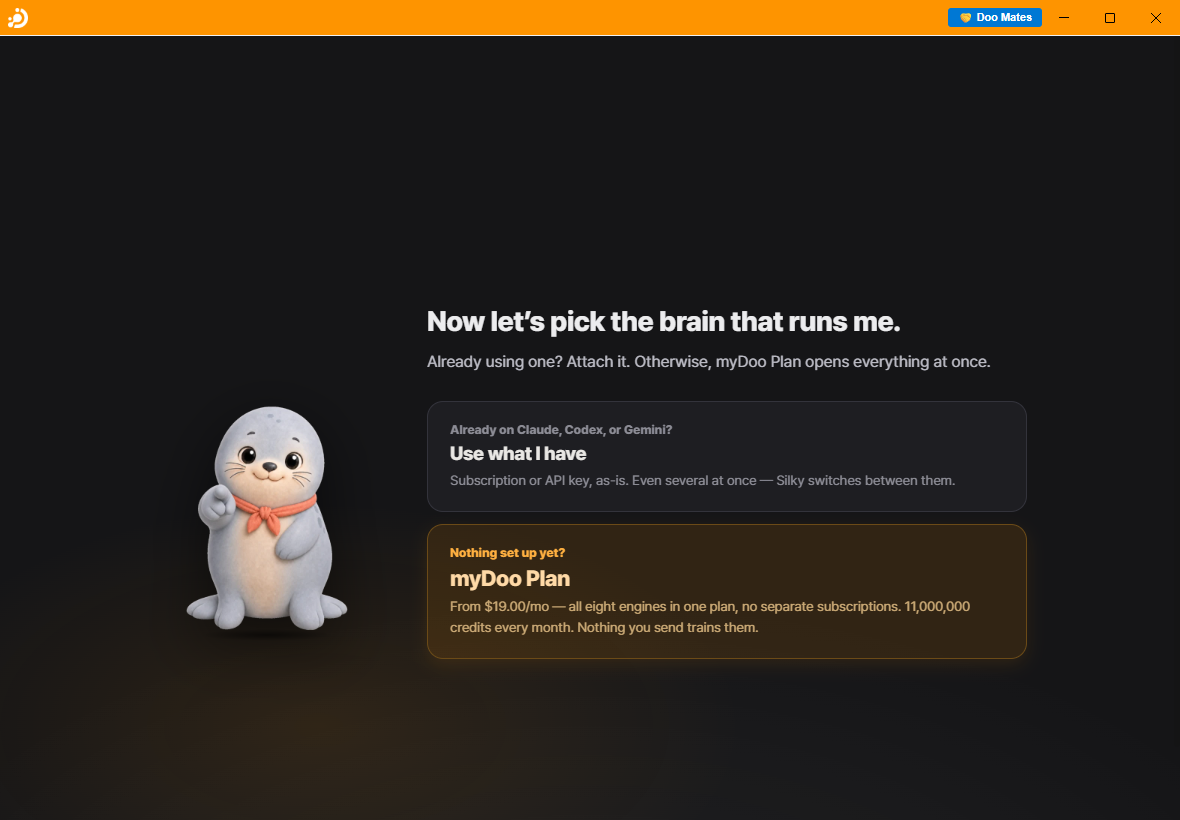
If you already subscribe to an AI
For those who pay
for Claude, Codex, and the like
and use them.
Learn how to connect with a subscription or an API key.
This step connects the AI that Silky (myDoo's AI assistant) will use. Connect Claude and Codex with your own subscription, Gemini with an API key — key setup is covered separately later.
For those who pay Claude or Codex directly.
Actual app dev capture · English UI
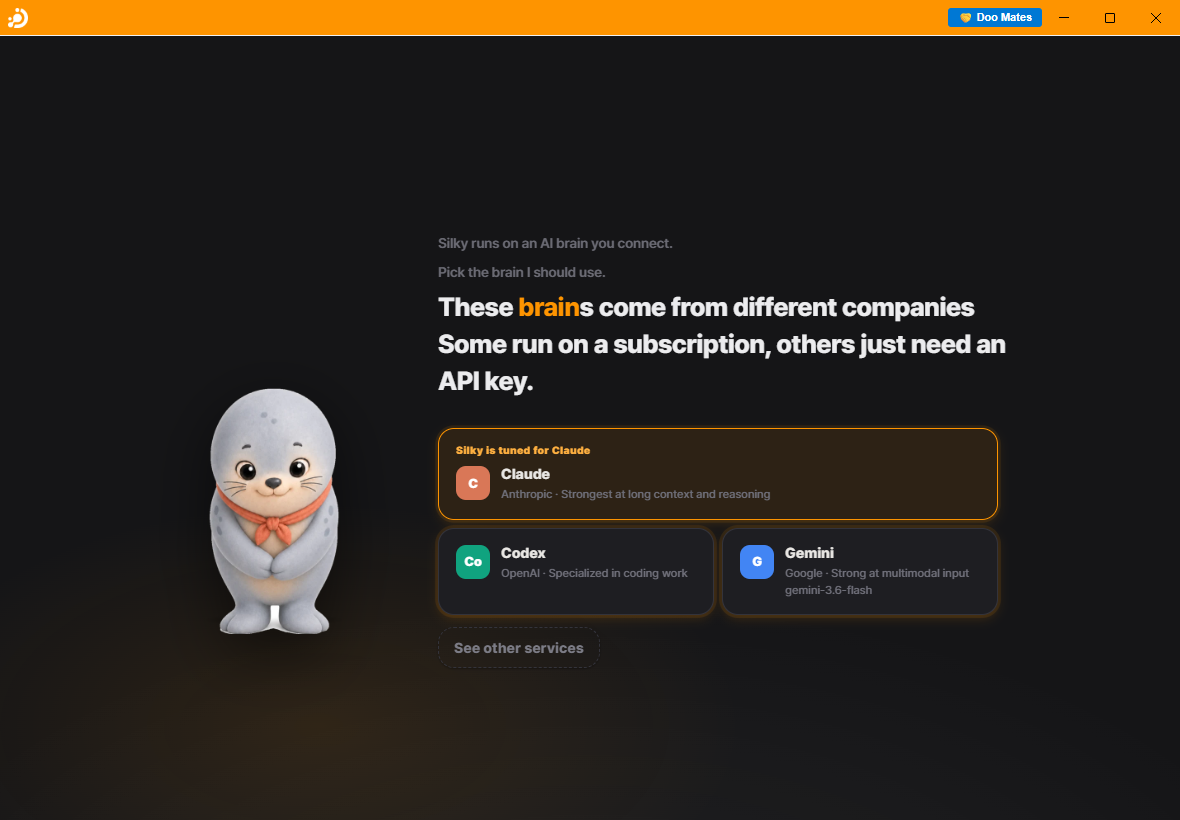
First, pick one main LLM.
For those who pay Claude or Codex directly.
Actual app dev capture · English UI
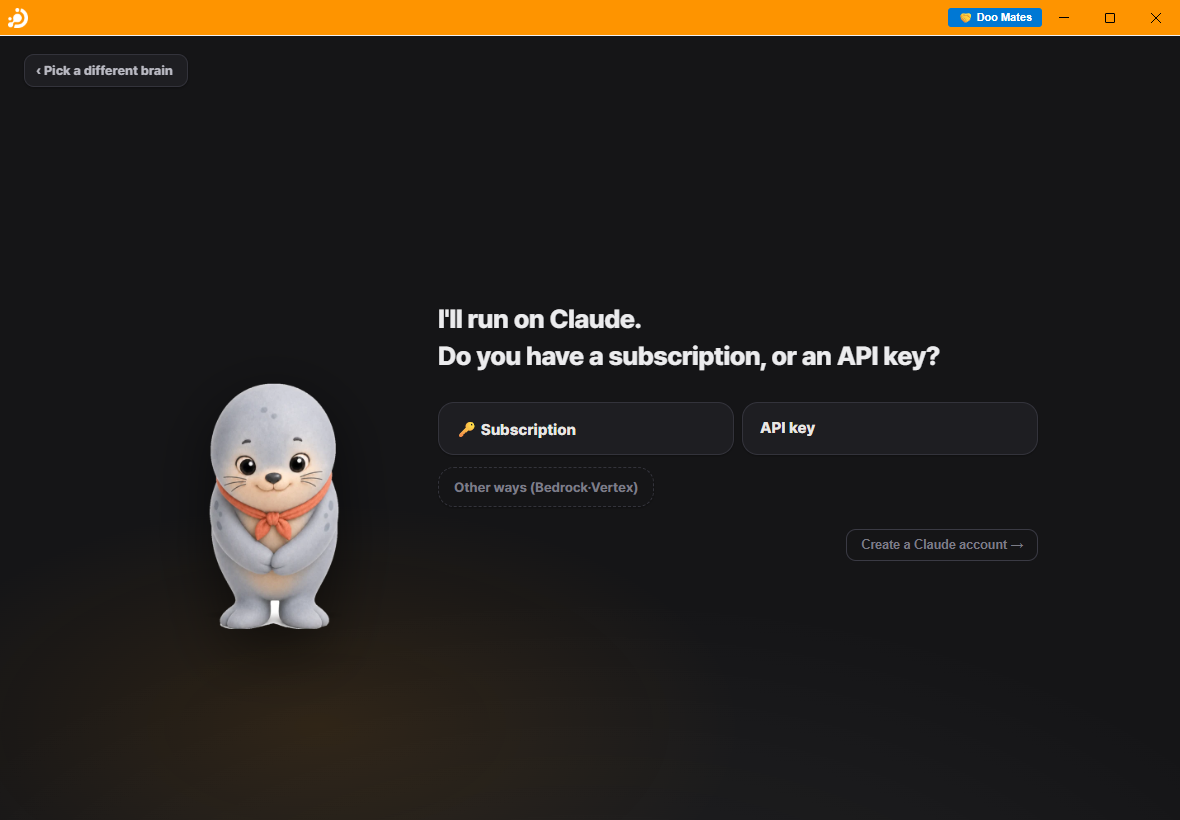
Connect with your subscription or an API key.
For those who pay Claude or Codex directly.
Actual app dev capture · English UI · Screen before authentication runs
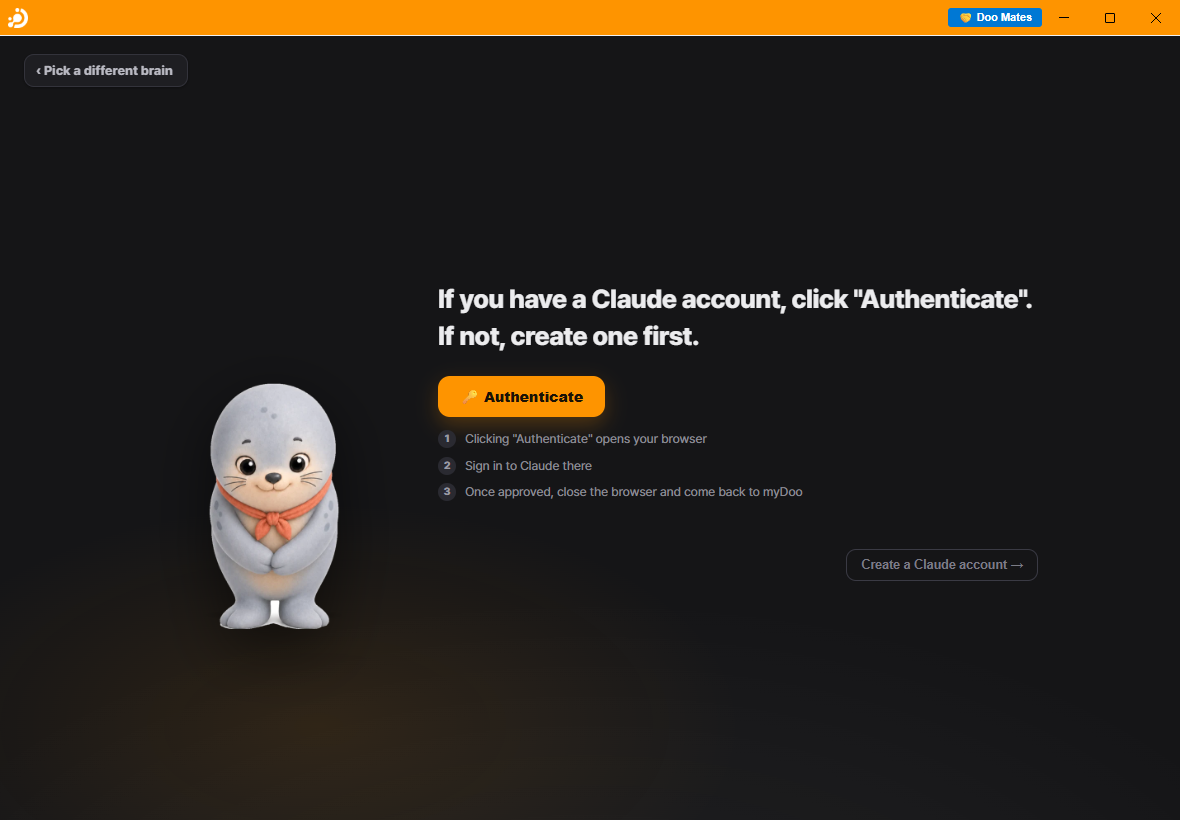
Starting with a subscription? Authenticate.
For those who pay Claude or Codex directly.
Actual app dev capture · API key field (empty)
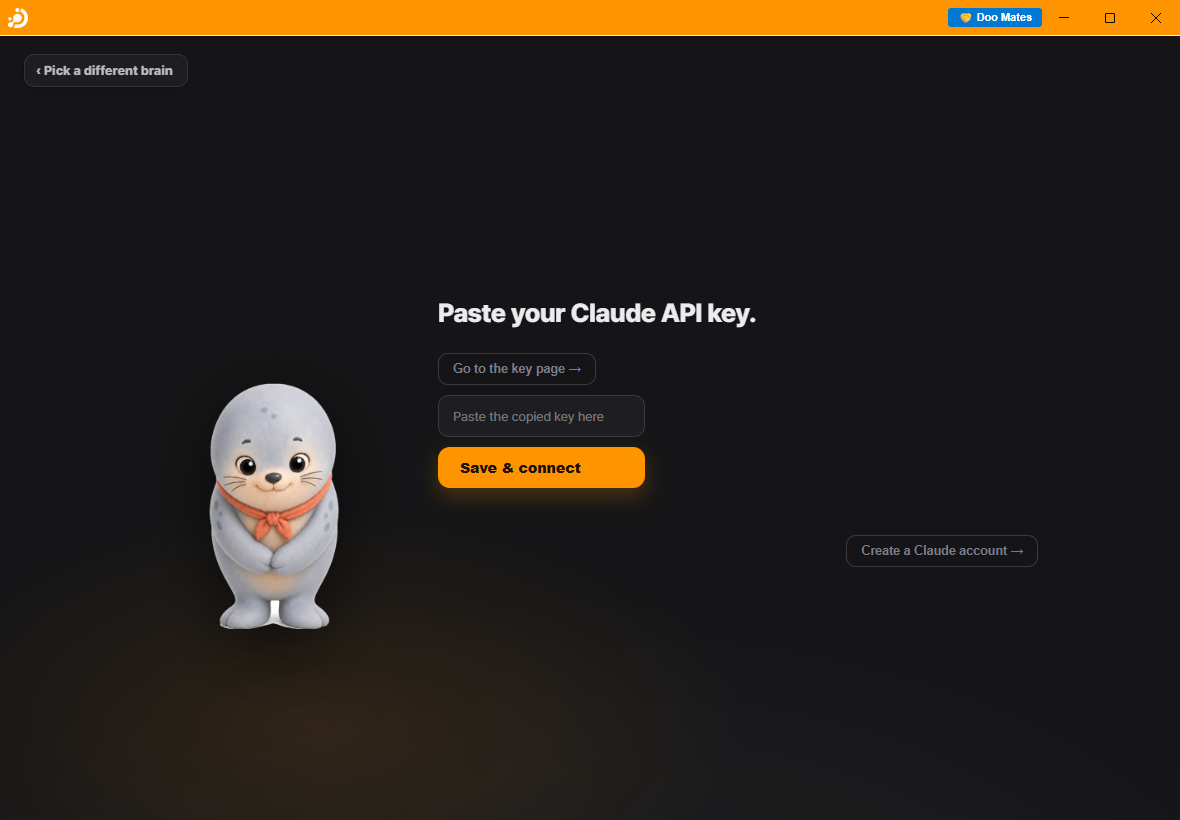
If you start with an API key, enter it here.
For those who pay Claude or Codex directly.
Actual app dev capture · English UI · Screen before authentication runs
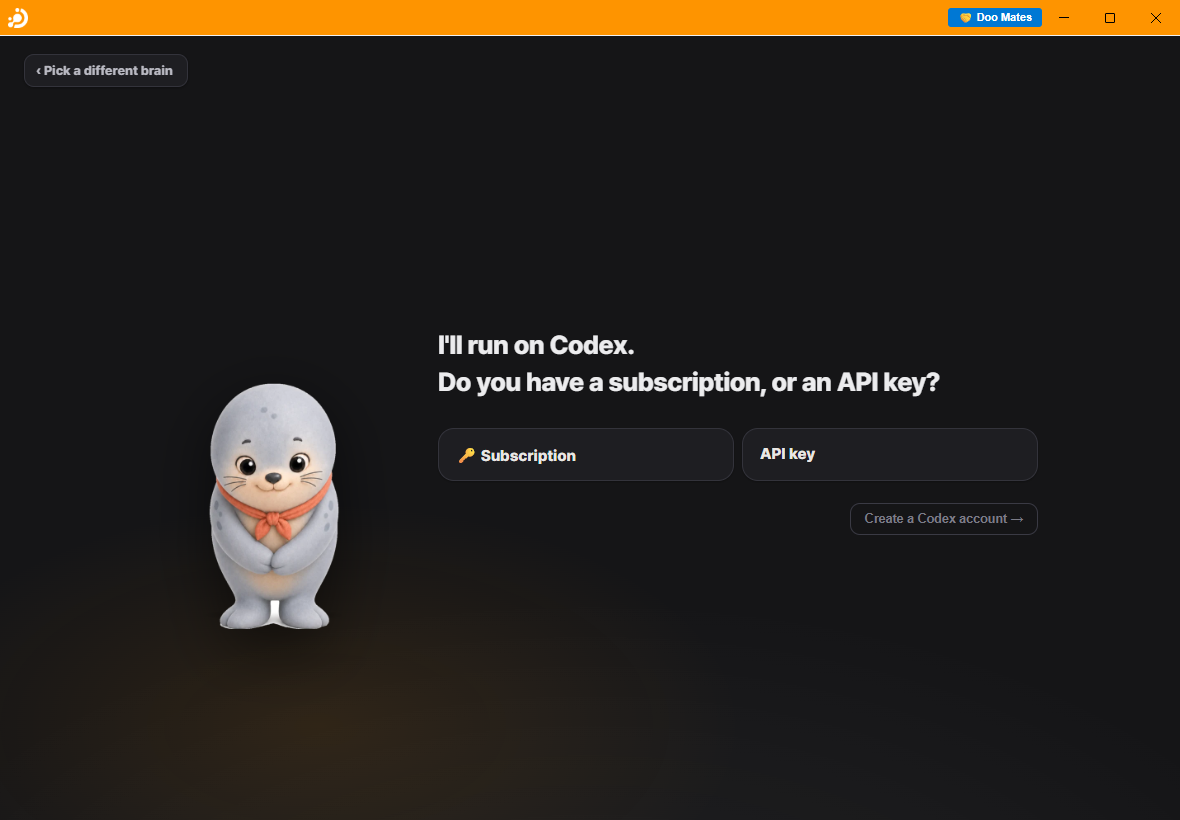
Codex also connects with a subscription or an API key.
Connect Claude and Codex with the subscription you already use.
The previous five slides, condensed into one. With a subscription, log in once; without one, use an API key. There is no separate plan to sign up for. Just log in with the Claude or Codex account you already use.- 1Pick your main AI
On first launch: “Now let’s pick the brain” → Use what I have → Claude or Codex. You can add other AIs after you start.
- 2Connection method
Choose Subscription (your own subscription) or API key. If you have a subscription, choose Subscription.
- 3Authentication
Tap Authenticate and a browser opens. There, log in and approve with your Claude (or Codex) account.
- 4Come back
When approval is done, close the browser and return to myDoo. You are done when Doo Home opens and the connected AI shows in the Connection panel at the bottom left.
- 5No subscription?
On the same screen, choose API key and paste the key you were issued. Gemini connects with an API key in myDoo. The next section shows how to get one.
Claude · Codex→🔐 Subscription
Your own subscription→🌐 Approve in browser
Authenticate→🏠 Doo Home
Check connection


Actual screens (English UI) — top: Claude Authenticate · bottom: Codex has the same two paths (Subscription / API key)
Gemini connects with an API key.
Claude and Codex connect directly with the subscription you already use, but Gemini needs an API key (a long string) issued by Google. Cost follows Google’s pricing and limits.- 1What an API key is
A long string issued under your Google account name. myDoo uses this key to send requests to Gemini. Treat it like a password.
- 2Cost
Key usage is billed to your Google account (free limits and pricing are set by Google). You pay nothing extra to myDoo.
- 3What you need
A Google account · a browser · myDoo installed.
- 4Two paths
Choosing Gemini as your main AI during first install («At first install») / adding Gemini while already using myDoo («If you already use myDoo»).
Google AI Studio→📋 Copy
Shown only once→🖥️ Paste into myDoo
Save & connect
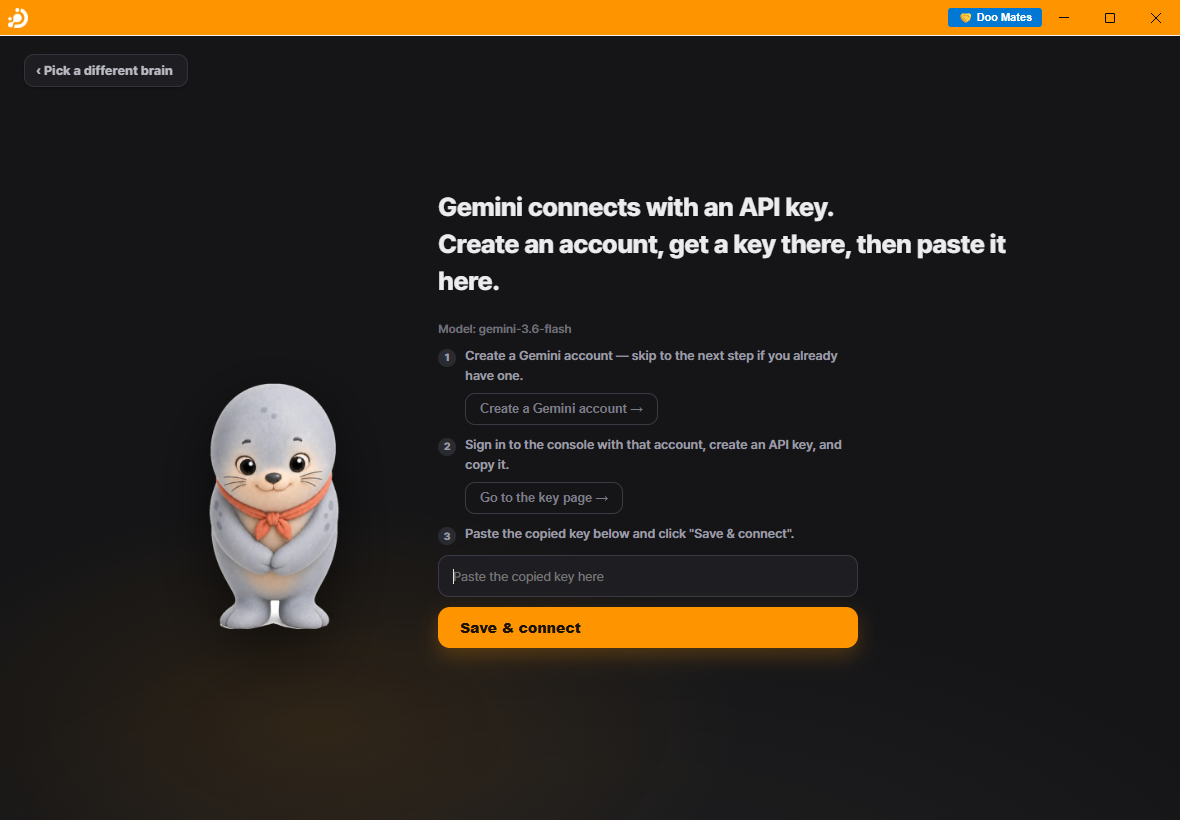
Actual screens · myDoo Gemini connection (English UI) — ① Create an account ② Issue and copy the key in the console ③ Paste and Save & connect
Create a key in Google AI Studio.
Do this in a browser. The “Go to the key page →” button on the myDoo connection screen takes you to the same place.- 1Go there
Open aistudio.google.com in a browser and log in with your Google account. You can also tap Go to the key page → on the myDoo screen.
- 2Key menu
Tap Get API key in the left (or top) menu.
- 3Create
Create API key → choose a project or create a new one. If this is your first time, a new project is fine.
- 4Copy
Tap Copy next to the new key. The full key may be shown only this once, so paste it into myDoo right away.
- 5Terms and billing
On first use, Google’s terms agreement appears. Without a payment method, you stay within the free limit (limits are set by Google).
Google screens are captured with a demo account because of copyright and account information
Google screen names are as of October 2026 and may be changed by Google
If you chose Gemini as your main AI.
On first launch, myDoo asks “which AI should run it?” Choose Gemini and the key screen appears right away.- 1Pick an AI
“Now let’s pick the brain” → Use what I have → Gemini in the list.
- 2Key screen
The “Gemini connects with an API key” screen. 1 Create an account (skip if you have one) → 2 Go to the key page → (the «Get a key from Google» steps) → 3 Paste.
- 3Paste
Paste the key into the “Paste the copied key here” field and tap Save & connect.
- 4Check
Doo Home opens, and when Gemini ● shows in the Connection panel at the bottom left, you are connected. Say hello to Silky.


Actual screens — top: pick an AI (Claude · Codex · Gemini) · bottom: enter the Gemini key
Keep your current AI and add Gemini.
Even if you started with Claude or Codex, attaching Gemini lets you pick it per conversation.- 1Open the Connection panel
Tap the “Connections · Claude default · Codex · Gemini…” strip at the bottom left of Doo Home.
- 2+ Add engine
Top right + → “Attach an engine”. Choose Gemini.
- 3Paste the key
Paste it into the API key field and tap Attach.
- 4To make it the default
In the same Connection panel, pick Gemini and set it as Default, and Silky uses it by default. To switch per chat, use the AI selector in the input box.
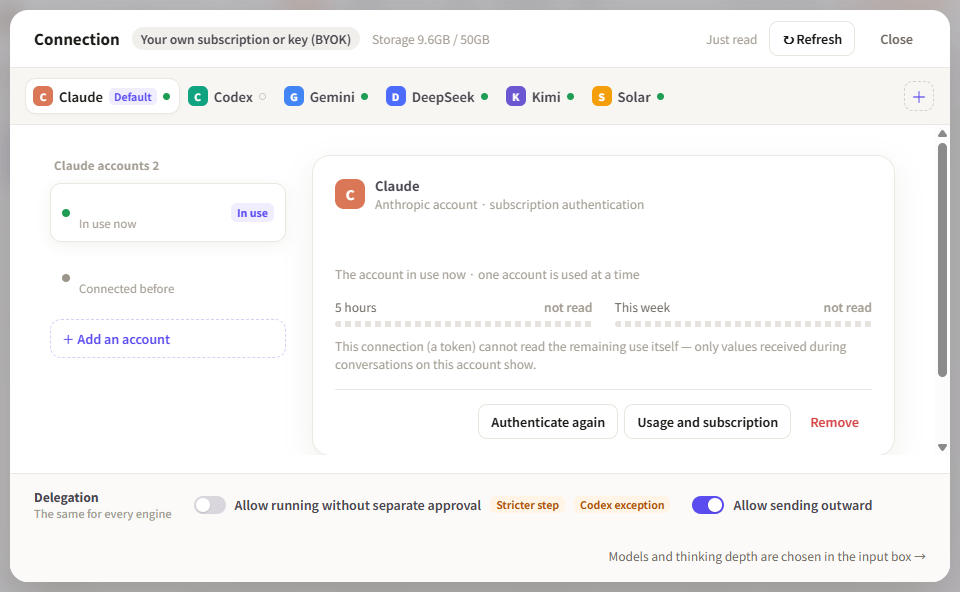
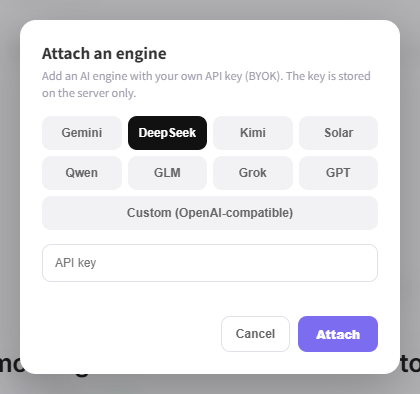
Actual screen — top: Connection panel at bottom left (account info hidden) · bottom: Add engine window
Your key is a password.
If a key leaks, others can use Gemini through your Google account. Just follow three rules.- 1Don't show it
Never put the key in chats, emails, or screenshots. Once pasted into myDoo, you don't need to write it down anywhere.
- 2If leaked, delete it now
In AI Studio → Get API key, delete that key and create a new one. Paste the new key into myDoo again.
- 3Watch the limit
Past the free limit, replies stall or slow down. Check usage in AI Studio and turn on Google billing if needed.
- 4One account
For business use, issue the key from your company Google account — easier to manage later.
Check for extra spaces or line breaks before or after the key. Copy and paste it again; if it still fails, create a new key.
You've passed Google's free limit. Check usage in AI Studio, then turn on billing or try again the next day.
Your company's Google admin policy may have AI Studio turned off. Ask your admin to enable AI Studio. Keeping work keys on the company account makes them easier to manage.
Tell Silky “Help me connect Gemini” and it will work through it with you while watching the screen.
For those who pay Claude or Codex directly.
Actual app dev capture · English UI · Screen before authentication runs
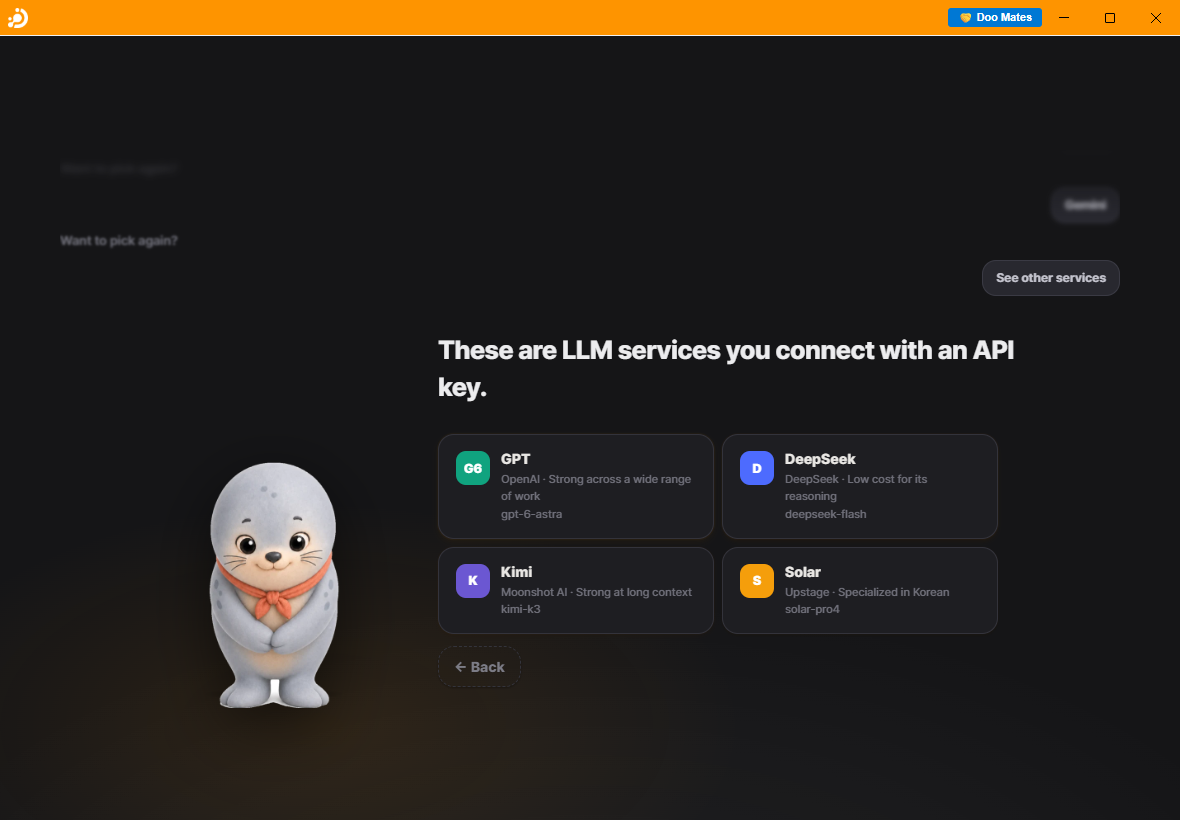
You can start with another AI too.
For those who pay Claude or Codex directly.
Actual app dev capture · account name and email hidden

To change the default engine,
For those who pay Claude or Codex directly.
Actual app dev capture · API key field (empty)

Pick an LLM to add and connect it.
Connect the AI you already use and myDoo is free.
Add more only when you need it.Connect your existing AI
Whole myDoo app free
Special Pack (optional) · Backup · Web publishing · Voice
Memory backup · Doopyrus · Voice transcription
AI from myDoo too
One plan, no separate AI subscription
AI usage costs follow each AI company's pricing · This guide takes the free route
Chats, memory, and results stay on your computer.
AI companies get only the requests sent; myDoo servers hold only your account and what you upload.Your computer
Chats · Work logs · Decisions · Result files
AI company
Only requests Silky sends
Based on your subscription · your key
myDoo server
Login account · What you published to Doopyrus
Shared projects · Backup (if turned on)
Switch AI and your memory stays — it doesn't live on the AI side · Anything leaving your computer goes out only after you confirm
The terms used in this guide.
They mean the same thing in every volume.The first screen when you open myDoo. Silky chat on the left, news, projects, and to-dos in the middle, Calendar, schedule, and Agents on the right.
The front desk and chief assistant for all work. Give it orders in plain words and it calls Staff, Agents, and Workers and keeps track of everything.
AI staff you teach and build yourself. One per role, such as blog manager or quote manager.
AI staff pre-trained and shipped by myDoo, such as government support program lookup or news clipping. Hire one and it starts working right away.
A nameless worker. Handles just this task within a project. If it fits well, promote it to Staff.
Work that leaves results behind. One AI means a Canvas; several means a Desk — you choose when you create it.
A project with one AI. Your result takes shape on the Screen beside the chat.
A project with several AIs. Staff and Workers each work in their own window at the same time, and Silky keeps track.
The panel where results are drawn. Not a browser.
Top right of Doo Home. Where you pull out Agents, Staff, Connections, and Skills.
The “Connection · Claude default · …” strip at the bottom left of Doo Home. See connected AIs and change the default AI here.
Gathering several AIs, Staff, and Workers in one chat window to review one agenda item. That chat window is the Doo Table.
Accumulated memory. Conversations, decisions, and documents you made are kept, so you don't have to explain again. View it in the Doo Home tab.
myDoo's publishing page that shows your finished result to others with a single link. The address stays the same after edits.
A long string issued by the provider when you connect an AI that isn't a subscription, such as Gemini. Treat it like a password.
Stuck? Start here.
The eight most common snags. The fixes from each volume, gathered on one page.Check the Connection panel at the bottom left of Doo Home to see whether the connected AI is alive. If it dropped, authenticate again or set another AI as default. Gemini may have hit Google's limit.
Check whether your PC and myDoo were on at that time. For reports missed while off, turn them on and say “Run it once now.”
myDoo must be running on your PC, and both PC and phone must be online.
In Inventory → Connections, check that the card shows “Connected,” that you allowed the permissions, and that you didn't link a different account.
It's in that project's folder. Tell Silky “those ○○ documents from last time” and it will fetch them.
Correct it on the spot: “Here, do it this way.” Fastest is to paste a good result and say “like this.”
Confirm the installer is the one from mydoo.ai, then choose “More info” → “Run anyway” (Vol. 1, ch. 3). If the source differs, don't run it.
Tell Silky “Help me” and it works through it with you while watching your screen. If that still doesn't work, contact Sang-mok Lee, CEO, +82 10-5955-1991 · imok@mydoo.ai
Installation and AI connection are done
Next is the
usage guide.
The guide has five volumes — 1 Getting started (this document) · 2 Using myDoo · 3 AI team · 4 Projects · 5 Connections
If you're stuck, tell Silky “Help me” · Sang-mok Lee, CEO, +82 10-5955-1991 · imok@mydoo.ai
